
Add RF Blocking Zone
This feature should only be used for deployments where the marked zones really are completely confined spaces that do not allow RF signals to pass such as prisons.
To add RF Blocking Zones, follow the steps below.
-
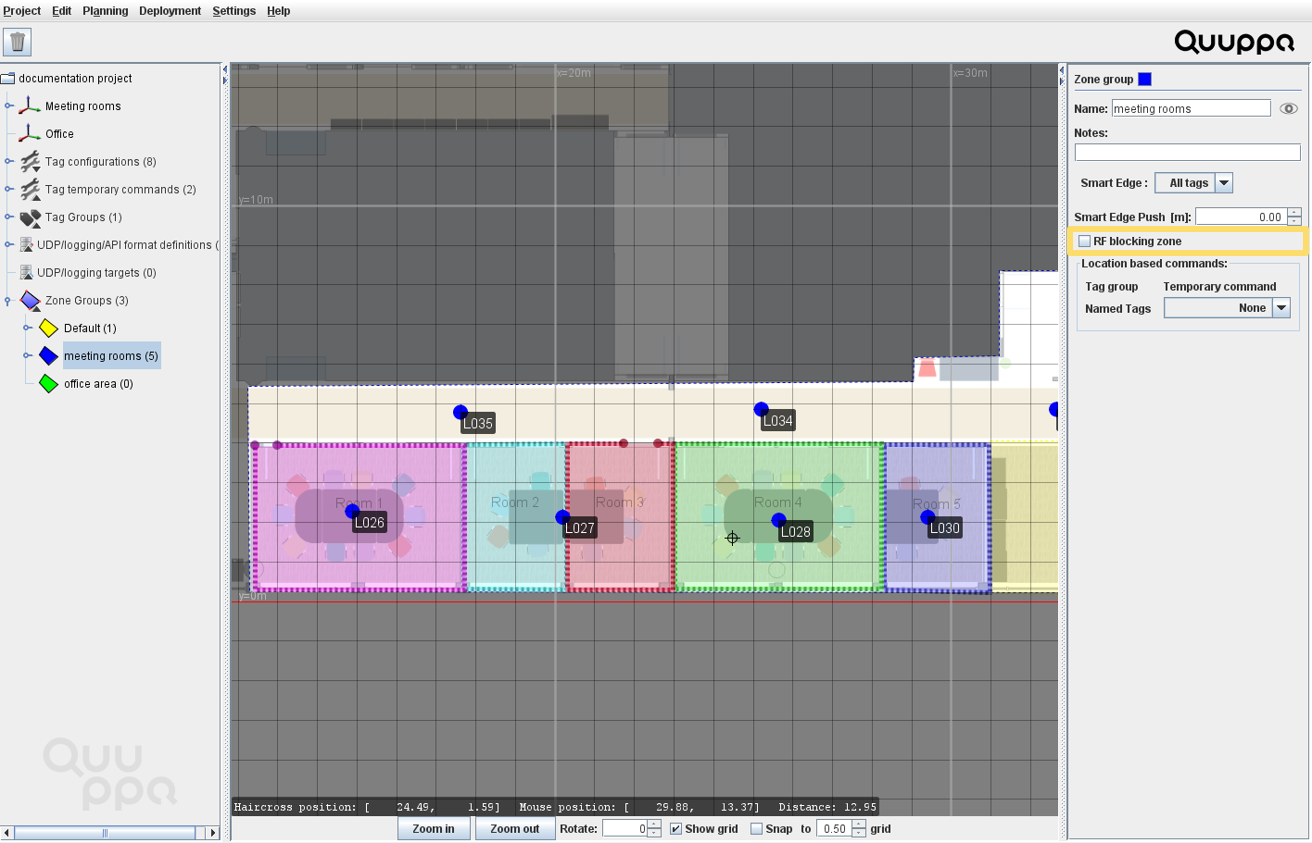
In the panel on the right, select which tags will be affected by the RF
Blocking Smart Edge to enable the Smart Edge features.

-
Once the Smart Edge features are enabled, check the RF blocking
zone checkbox to enable the RF Blocking Smart Edge.
-
To add zones to the Zone Group, use the object tree on the left to navigate
zone that you want to add and in the panel on to right select the relevant Zone
Group.
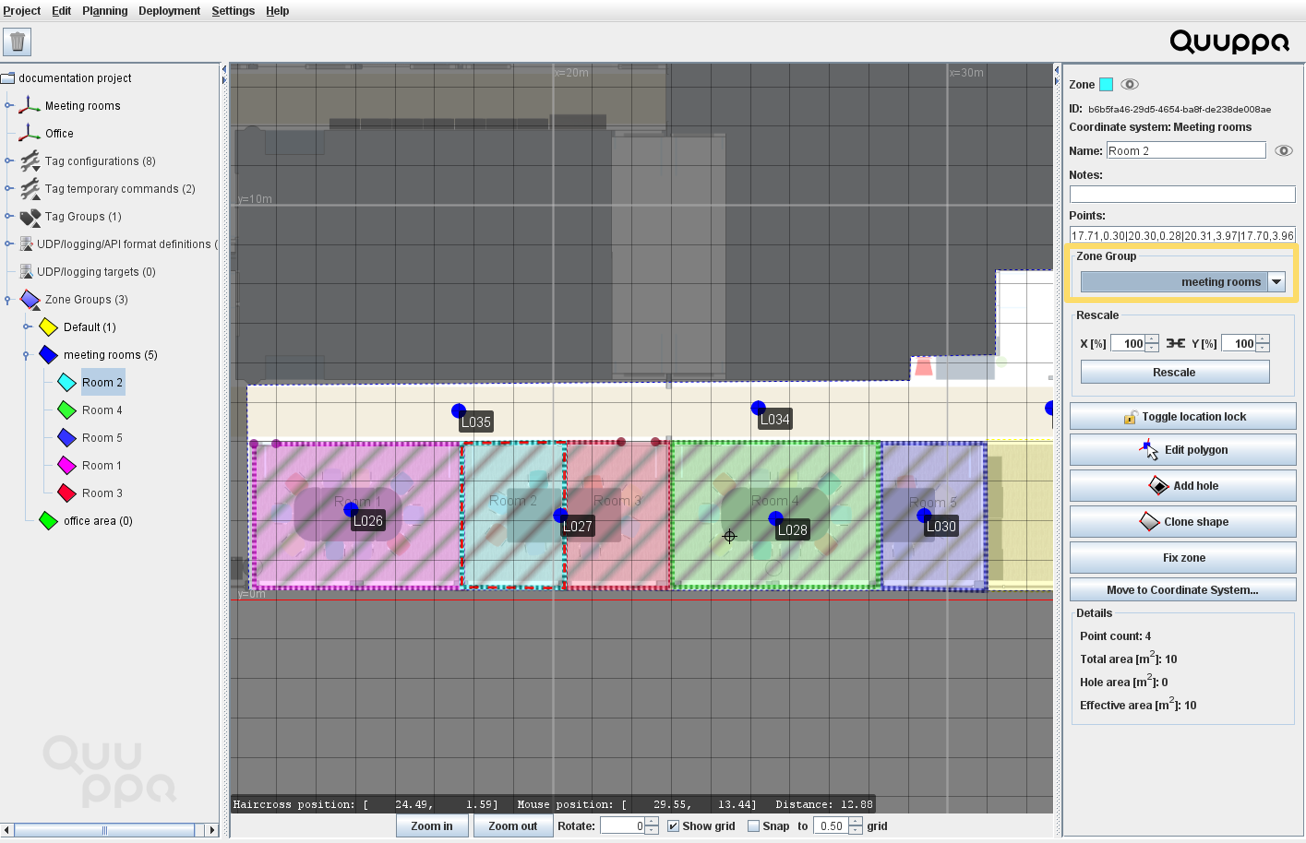 Note:Once the RF Blocking Smart Edge has been applied, you will notice that the zone edges will appear thicker and a diagonal line texture will be added to the zone in the map view to visually indicate that the RF Blocking feature is enabled.