
View & Edit Locator Settings Using Locator Table
- Coordinate System
- Tracking Area
- CoordinatesNote:Please note that the coordinates will be set and locked when the Locators are positioned using the QSP positioning tools (XY Guidelines, XY Wizard, Tape Measurements). Please do not unlock them after this unless absolutely necessary as this will affect the positioning calculations made by the system.
- Scan Mode settings
- Locator Sensitivity settings
- Mode (e.g. deployment, tracking)
- Uptime (i.e. how long the Locator has been up and running)
The information provided in the Locator table can help you troubleshoot your project.
To open the Locator table, please follow the steps below.
-
In the menu bar at the top, open the Deployment menu and
select Locator table....
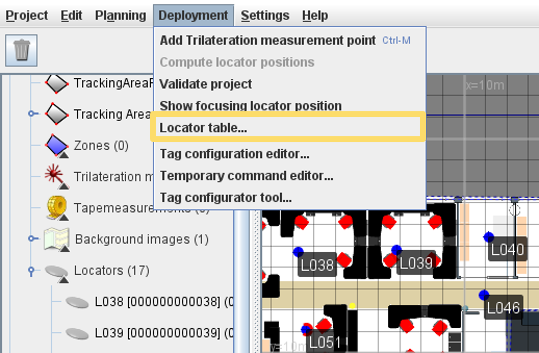
-
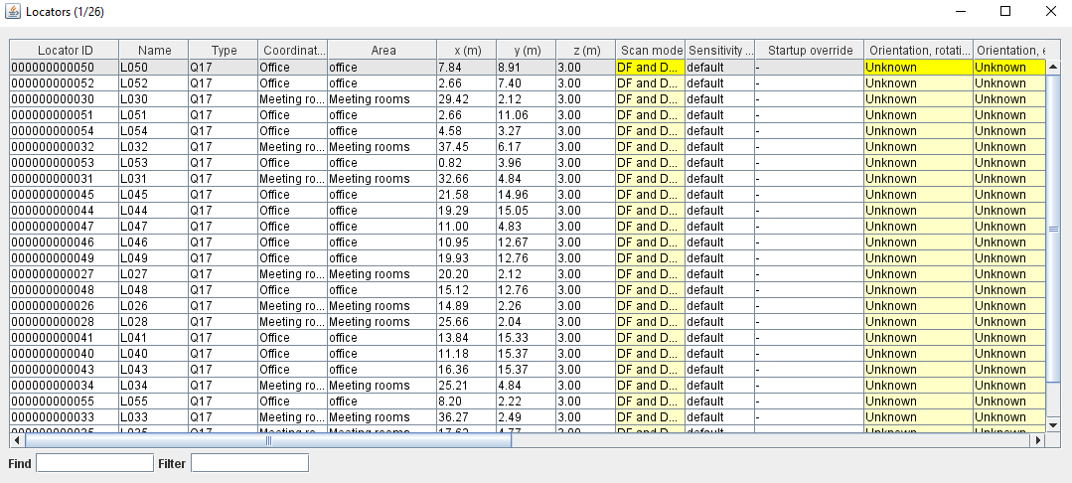
The Locator table window will open. In this window you can
view Locator settings for all of the Locators in your project.
-
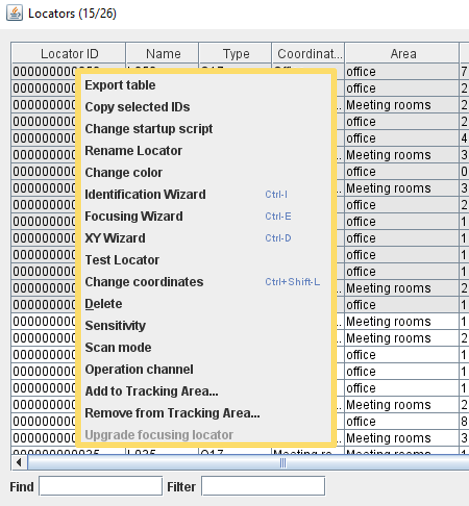
To edit the settings, select the Locator/s that you want to edit and
right-click to open an options menu. In the menu, select the action that you
would like to take for the selected Locator/s.
 Note:If you have already deployed the Locators (positioned, identified and focused), please be aware that edits to the Locator coordinates will affect the tracking results.